> ## Documentation Index
> Fetch the complete documentation index at: https://newwebsite.mintlify.site/llms.txt
> Use this file to discover all available pages before exploring further.
# Custom Domain
> Use your own domain for your website
## Custom Domain
Connect your own domain to your new\.website project for a professional web presence. Instead of using the default `your-project.public.website` URL, you can use your own domain like `yourcompany.com`.
 ## How to Add a Custom Domain
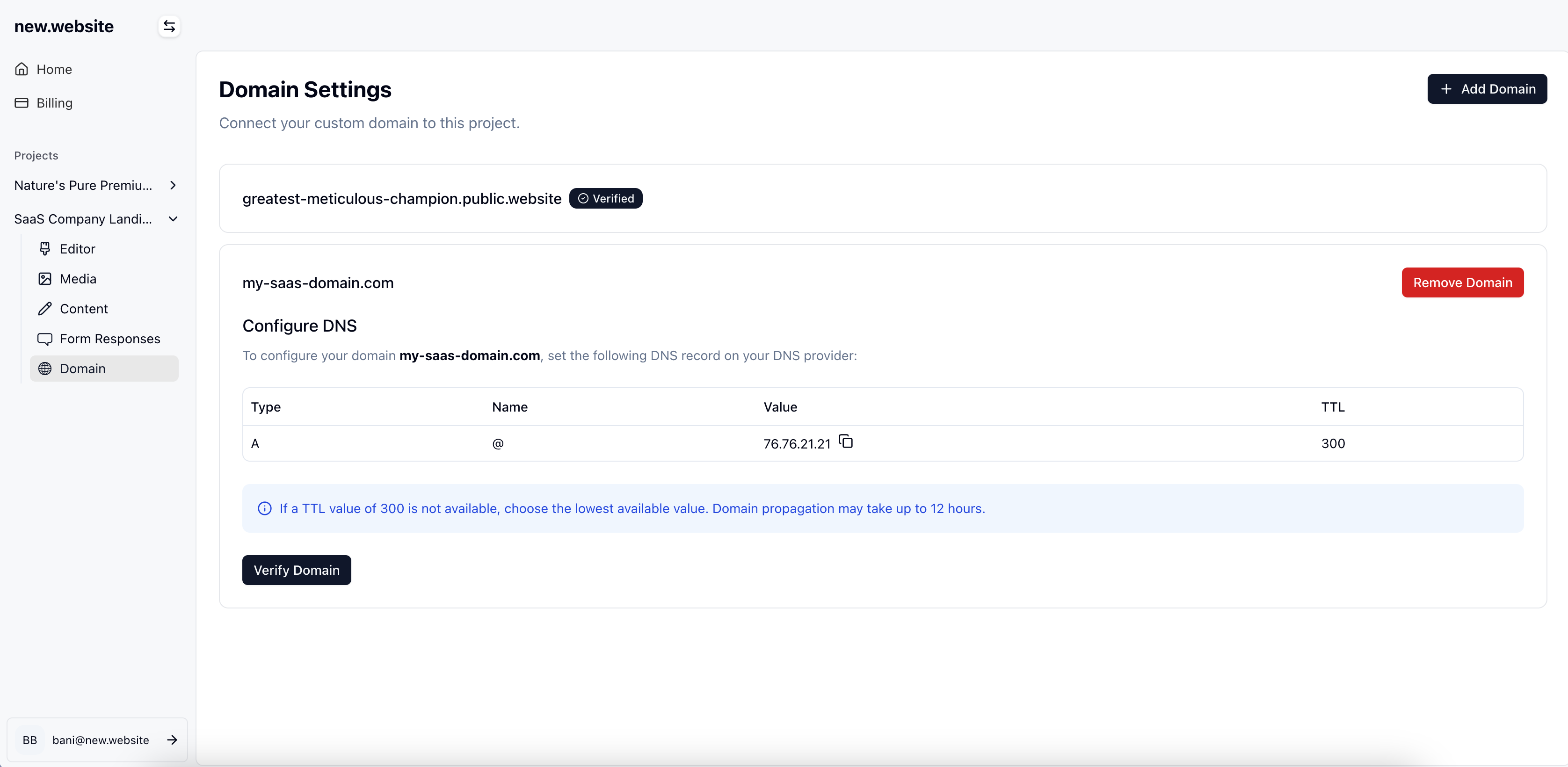
1. Navigate to your project in the new\.website dashboard
2. Click on the **Domain** section in the left sidebar
3. Click the **"+ Add Domain"** button to begin the setup process
## How to Add a Custom Domain
1. Navigate to your project in the new\.website dashboard
2. Click on the **Domain** section in the left sidebar
3. Click the **"+ Add Domain"** button to begin the setup process
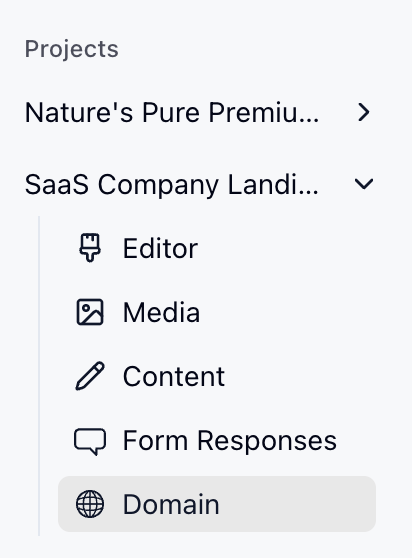 1. Enter your custom domain name (e.g., `my-saas-domain.com`)
2. The system will display the domain you've entered for confirmation
3. Click **Continue** to proceed
1. Enter your custom domain name (e.g., `my-saas-domain.com`)
2. The system will display the domain you've entered for confirmation
3. Click **Continue** to proceed
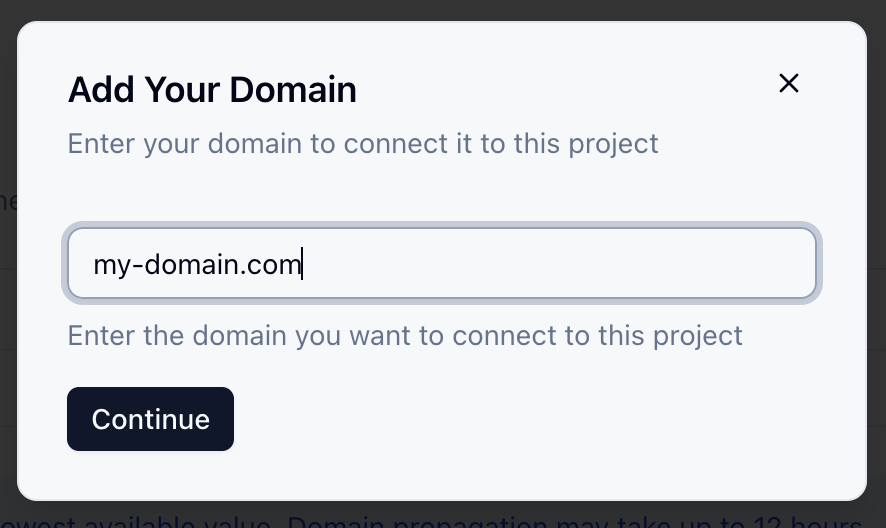 Once you've added your domain, the dashboard will display the DNS configuration you need to set up with your domain provider.
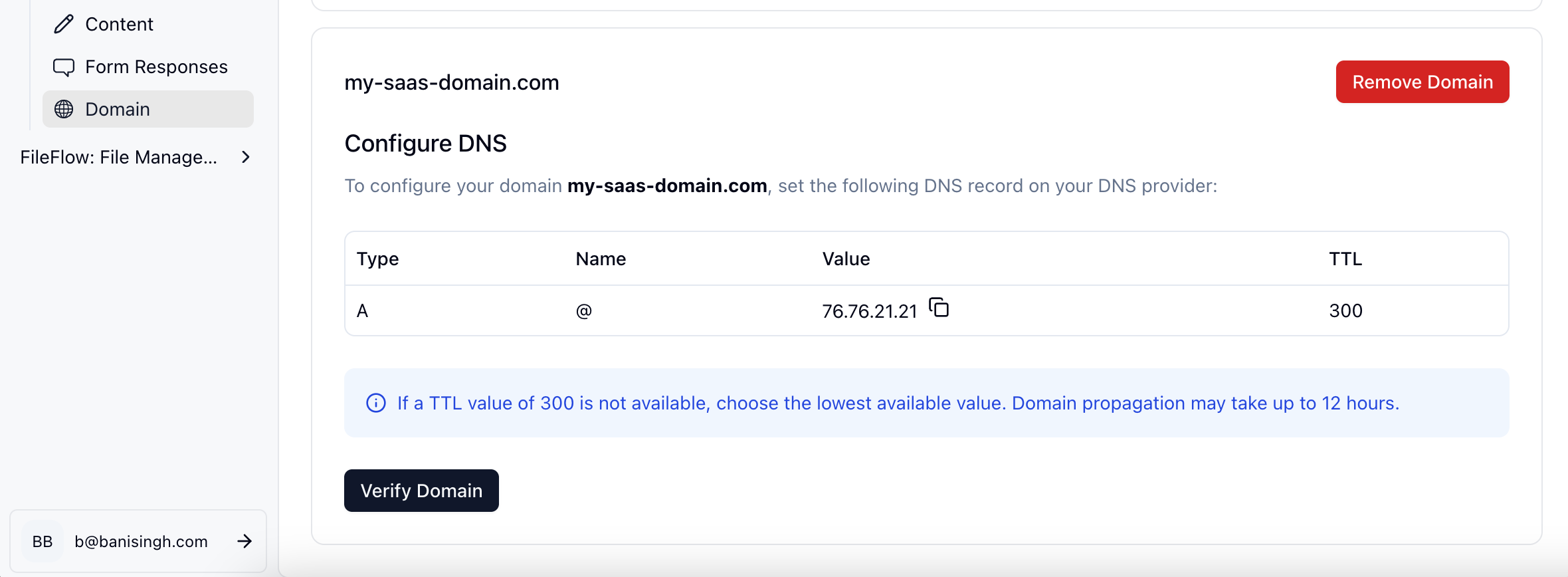 1. Check the DNS configuration table shown in your dashboard - it will display the specific record type (A or CNAME), name, value, and TTL based on your domain type
2. Log into your domain registrar's control panel (GoDaddy, Namecheap, Cloudflare, etc.)
3. Navigate to DNS management or DNS settings
4. Add the DNS record exactly as shown in your dashboard:
* Use the **Type** displayed (A record for root domains, CNAME for subdomains)
* Use the **Name** value shown
* Use the **Value** provided in your dashboard
* Set **TTL** as shown (or use the lowest available value if the exact TTL isn't available)
1. Check the DNS configuration table shown in your dashboard - it will display the specific record type (A or CNAME), name, value, and TTL based on your domain type
2. Log into your domain registrar's control panel (GoDaddy, Namecheap, Cloudflare, etc.)
3. Navigate to DNS management or DNS settings
4. Add the DNS record exactly as shown in your dashboard:
* Use the **Type** displayed (A record for root domains, CNAME for subdomains)
* Use the **Name** value shown
* Use the **Value** provided in your dashboard
* Set **TTL** as shown (or use the lowest available value if the exact TTL isn't available)
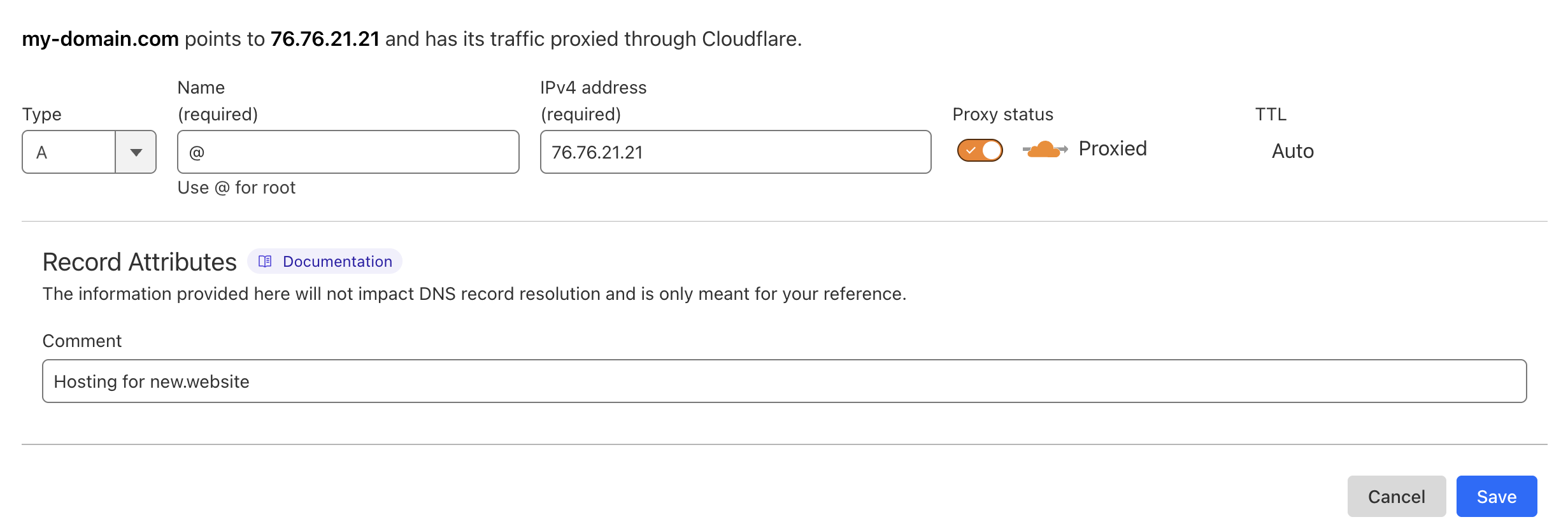 This example shows how it looks in Cloudflare.com. Other domain providers like Namecheap or GoDaddy will have similar interfaces but may look different.
1. After updating your DNS settings, return to the new\.website dashboard
2. Click the **"Verify Domain"** button
3. The verification process may take up to 12 hours due to DNS propagation
Once verification is complete, your domain should have a "Verified" badge next to it, indicating it's working properly.
**DNS Propagation**: Domain changes can take up to 12 hours to propagate globally. If verification fails initially, wait a few hours and try again.
If a TTL value of 300 is not available with your DNS provider, choose the lowest available value to speed up propagation.
## Troubleshooting
### Domain Not Verifying
* **Wait for propagation**: DNS changes can take up to 12 hours
* **Check DNS settings**: Ensure the A record is correctly configured
* **Clear DNS cache**: Try accessing your domain from an incognito/private browser window
* **Contact support**: If issues persist after 24 hours, contact support at [hello@new.website](mailto:hello@new.website)
### Subdomain Setup
If you want to use a subdomain (like `app.yourcompany.com`), use the subdomain name instead of `@` in the Name field when setting up your DNS A record.
## Domain Management
Once verified, you can:
* **Remove domains**: Click the "Remove Domain" button to disconnect a domain
* **Add multiple domains**: Connect multiple domains to the same project
* **Monitor status**: See verification status with the "Verified" badge
Consider setting up both the www and non-www versions of your domain by adding both `yourcompany.com` and `www.yourcompany.com` as separate domain entries.
## Frequently Asked Questions
No, new\.website doesn't sell domains. You'll need to purchase your domain from a domain registrar like GoDaddy, Namecheap, Cloudflare, or any other domain provider. Once you own the domain, you can connect it to your new\.website project.
To remove a custom domain:
1. Go to your project dashboard
2. Navigate to the Domain section
3. Find the domain you want to remove
4. Click the "Remove Domain" button next to it
5. Confirm the removal when prompted
Custom domains are included with the \$25 paid plan. There are no additional fees from new\.website for using custom domains - you only pay for the domain registration fee to your domain provider.
Yes, you can connect multiple domains to the same project.
Domain verification is usually instant once DNS propagation is complete. However, DNS propagation can take anywhere from a few minutes to 12 hours, depending on your domain provider and global DNS cache updates.
Yes, you can use subdomains like `app.yourcompany.com` or `blog.yourcompany.com`. When setting up the DNS record, use the subdomain name (like `app`) instead of `@` in the Name field.
If your domain still isn't working after 24 hours:
1. Double-check your DNS settings to ensure they match exactly:
* **Type**: A
* **Name**: @ (or blank for root domain)
* **Value**: 76.76.21.21
* **TTL**: 300 (or lowest available)
2. Use a DNS checker tool like whatsmydns.net to verify your DNS records are propagated globally
3. Try clearing your browser cache or testing from an incognito window
4. If everything looks correct but it's still not working, contact our support team at [hello@new.website](mailto:hello@new.website) with your domain name and we'll investigate further
This example shows how it looks in Cloudflare.com. Other domain providers like Namecheap or GoDaddy will have similar interfaces but may look different.
1. After updating your DNS settings, return to the new\.website dashboard
2. Click the **"Verify Domain"** button
3. The verification process may take up to 12 hours due to DNS propagation
Once verification is complete, your domain should have a "Verified" badge next to it, indicating it's working properly.
**DNS Propagation**: Domain changes can take up to 12 hours to propagate globally. If verification fails initially, wait a few hours and try again.
If a TTL value of 300 is not available with your DNS provider, choose the lowest available value to speed up propagation.
## Troubleshooting
### Domain Not Verifying
* **Wait for propagation**: DNS changes can take up to 12 hours
* **Check DNS settings**: Ensure the A record is correctly configured
* **Clear DNS cache**: Try accessing your domain from an incognito/private browser window
* **Contact support**: If issues persist after 24 hours, contact support at [hello@new.website](mailto:hello@new.website)
### Subdomain Setup
If you want to use a subdomain (like `app.yourcompany.com`), use the subdomain name instead of `@` in the Name field when setting up your DNS A record.
## Domain Management
Once verified, you can:
* **Remove domains**: Click the "Remove Domain" button to disconnect a domain
* **Add multiple domains**: Connect multiple domains to the same project
* **Monitor status**: See verification status with the "Verified" badge
Consider setting up both the www and non-www versions of your domain by adding both `yourcompany.com` and `www.yourcompany.com` as separate domain entries.
## Frequently Asked Questions
No, new\.website doesn't sell domains. You'll need to purchase your domain from a domain registrar like GoDaddy, Namecheap, Cloudflare, or any other domain provider. Once you own the domain, you can connect it to your new\.website project.
To remove a custom domain:
1. Go to your project dashboard
2. Navigate to the Domain section
3. Find the domain you want to remove
4. Click the "Remove Domain" button next to it
5. Confirm the removal when prompted
Custom domains are included with the \$25 paid plan. There are no additional fees from new\.website for using custom domains - you only pay for the domain registration fee to your domain provider.
Yes, you can connect multiple domains to the same project.
Domain verification is usually instant once DNS propagation is complete. However, DNS propagation can take anywhere from a few minutes to 12 hours, depending on your domain provider and global DNS cache updates.
Yes, you can use subdomains like `app.yourcompany.com` or `blog.yourcompany.com`. When setting up the DNS record, use the subdomain name (like `app`) instead of `@` in the Name field.
If your domain still isn't working after 24 hours:
1. Double-check your DNS settings to ensure they match exactly:
* **Type**: A
* **Name**: @ (or blank for root domain)
* **Value**: 76.76.21.21
* **TTL**: 300 (or lowest available)
2. Use a DNS checker tool like whatsmydns.net to verify your DNS records are propagated globally
3. Try clearing your browser cache or testing from an incognito window
4. If everything looks correct but it's still not working, contact our support team at [hello@new.website](mailto:hello@new.website) with your domain name and we'll investigate further