> ## Documentation Index
> Fetch the complete documentation index at: https://newwebsite.mintlify.site/llms.txt
> Use this file to discover all available pages before exploring further.
# GitHub Sync
> Connect your project to GitHub for version control and collaboration
# GitHub Sync
GitHub Sync allows you to connect your new\.website project to a GitHub repository. This feature enables you to:
1. **Export your project** to a new GitHub repository
2. **Sync changes** between new\.website and GitHub
3. **Collaborate** with others using GitHub's tools
4. **Version control** your website content
## Setting up GitHub Sync
### Step 1: Access the Sync Feature
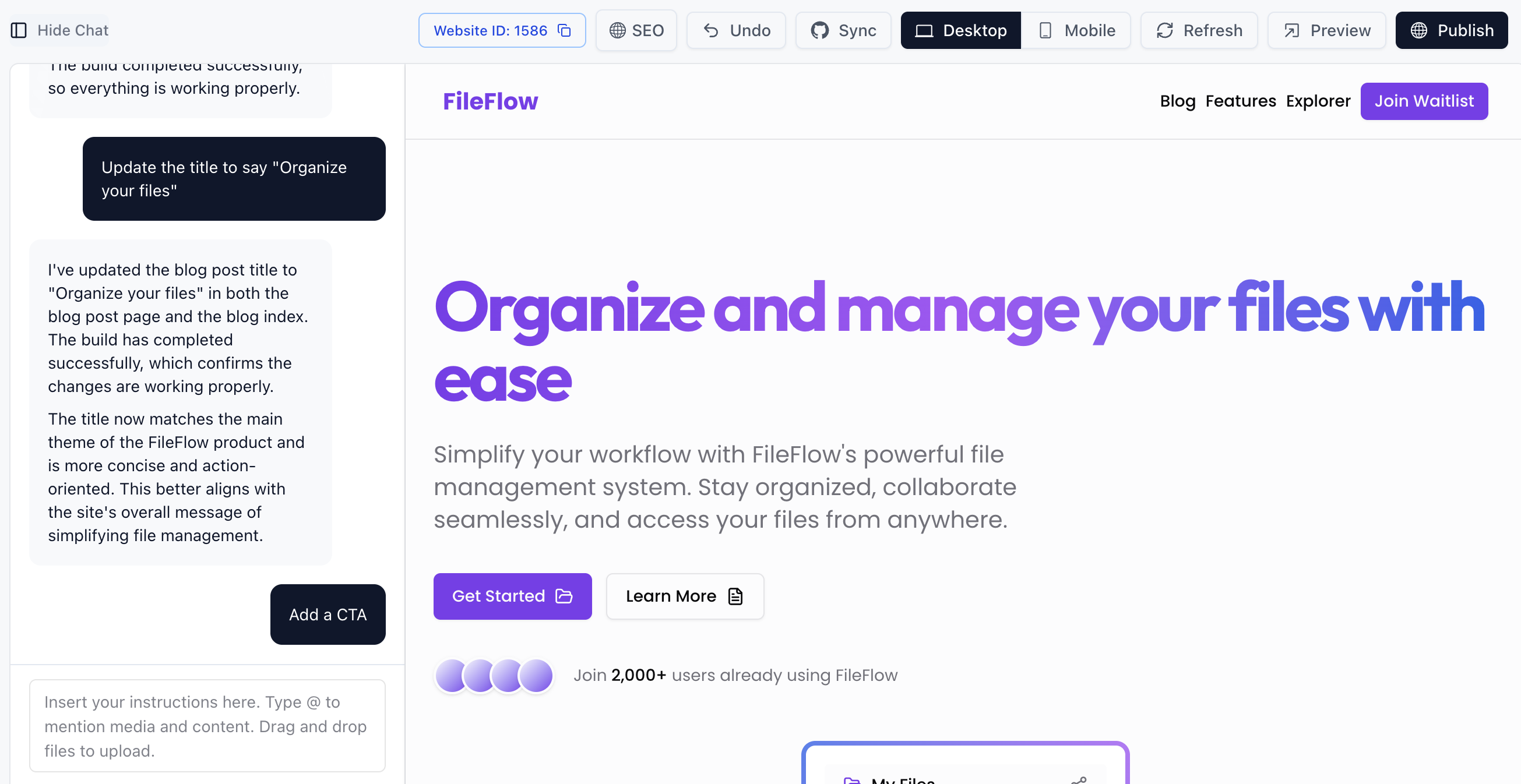
In the editor, locate and click the **Sync** button in the top navigation bar.
 ### Step 2: Connect to GitHub
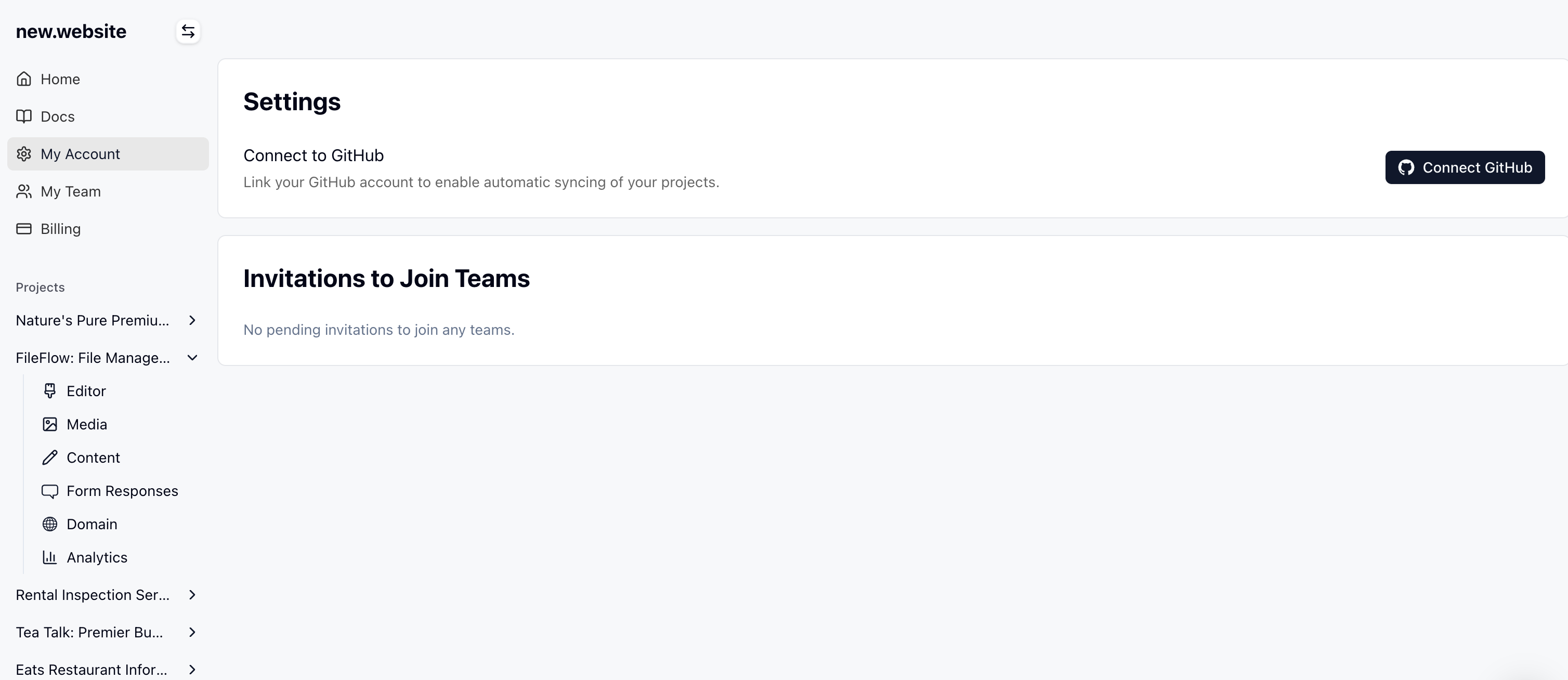
Click the **Connect GitHub** button to begin the integration process.
### Step 2: Connect to GitHub
Click the **Connect GitHub** button to begin the integration process.
 ### Step 3: Install new\.website Sync App
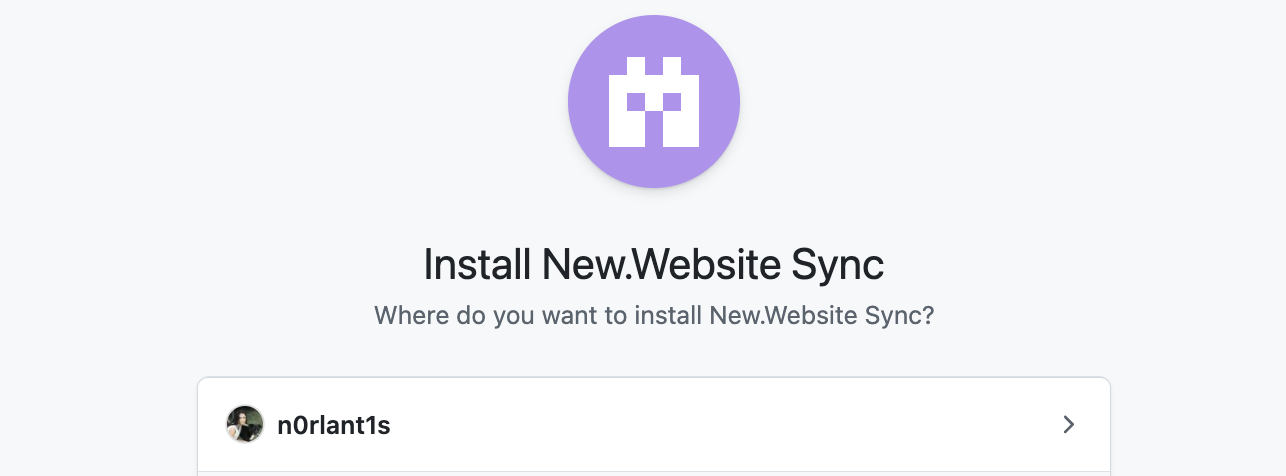
You'll be redirected to GitHub where you need to install the new\.website Sync app. Select your GitHub profile or organization where you want to install the app.
### Step 3: Install new\.website Sync App
You'll be redirected to GitHub where you need to install the new\.website Sync app. Select your GitHub profile or organization where you want to install the app.
 ### Step 4: Configure Repository Access
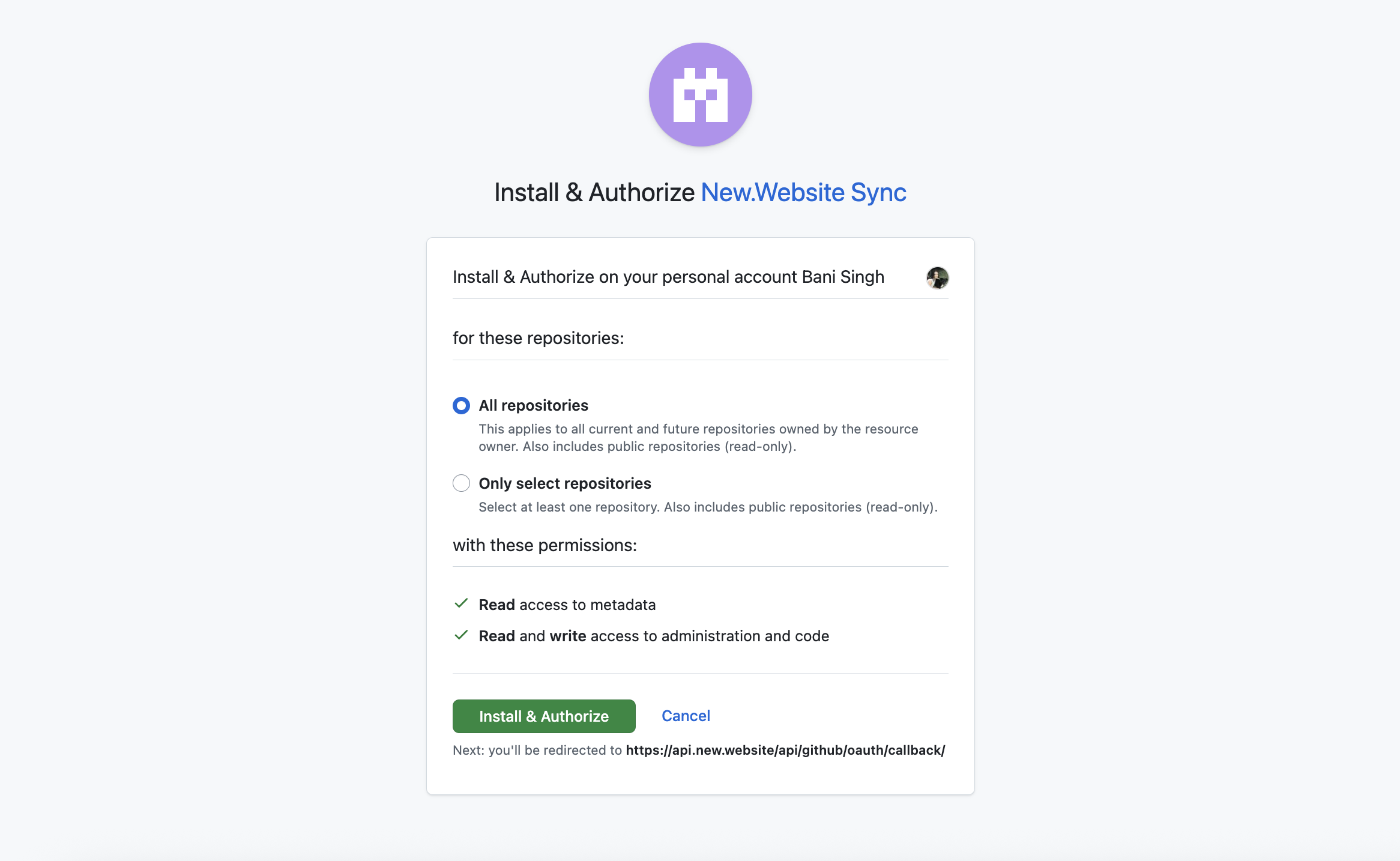
Choose "All repositories" when prompted to configure the repository access level for the new\.website Sync app.
**Important:** new\.website only works if you grant access to **All repositories**. Selecting "Only select repositories" will prevent the sync feature from functioning properly.
The app requires:
* Read access to metadata
* Read and write access to administration and code
### Step 4: Configure Repository Access
Choose "All repositories" when prompted to configure the repository access level for the new\.website Sync app.
**Important:** new\.website only works if you grant access to **All repositories**. Selecting "Only select repositories" will prevent the sync feature from functioning properly.
The app requires:
* Read access to metadata
* Read and write access to administration and code
 Click **Install & Authorize** to continue.
### Step 5: Create New Repository
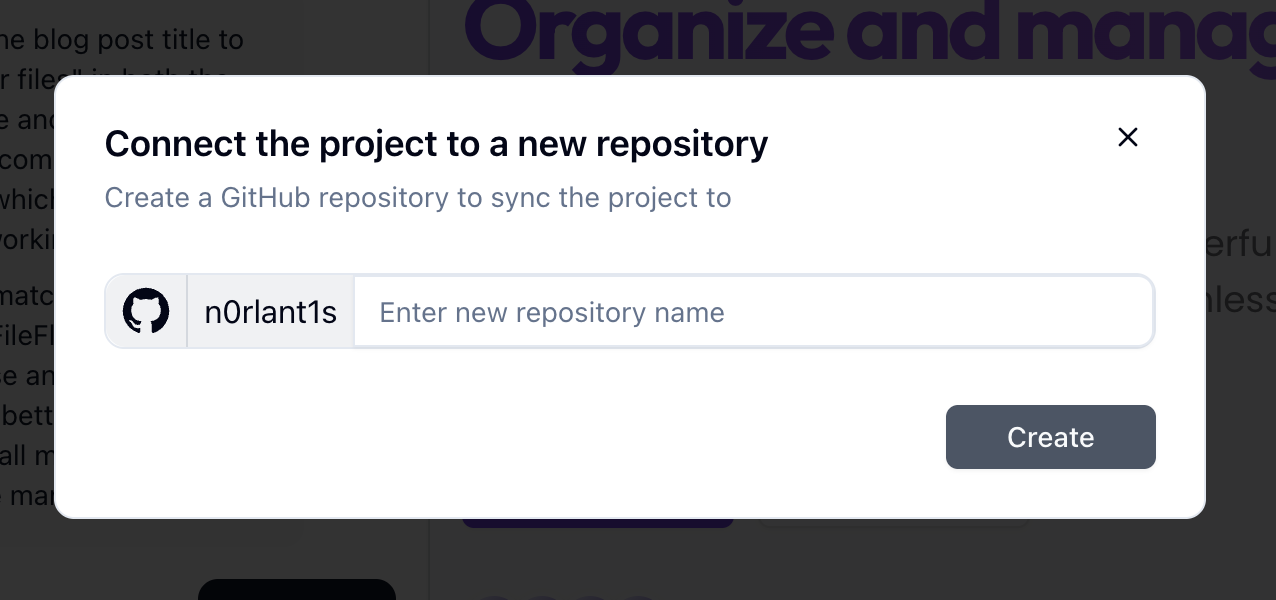
After authorization, return to the new\.website editor and click the **Sync** button again. You'll now see the option to "Connect the project to a new repository."
Enter your desired repository name in the text field and click **Create**.
Click **Install & Authorize** to continue.
### Step 5: Create New Repository
After authorization, return to the new\.website editor and click the **Sync** button again. You'll now see the option to "Connect the project to a new repository."
Enter your desired repository name in the text field and click **Create**.
 ### Step 6: Confirmation
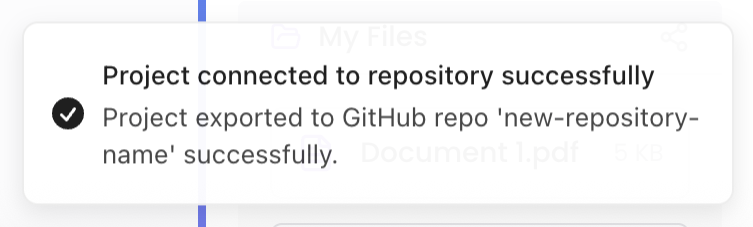
You'll see a success notification confirming that your project has been connected and exported to GitHub.
### Step 6: Confirmation
You'll see a success notification confirming that your project has been connected and exported to GitHub.
 ### Step 7: View on GitHub
Your new repository is now available on GitHub with all your project files synced.
### Step 7: View on GitHub
Your new repository is now available on GitHub with all your project files synced.
 ## How Sync Works
Once connected, any changes you make in new\.website will automatically sync to your GitHub repository. Similarly, changes made directly in GitHub will be reflected in your new\.website project, allowing you to work seamlessly between both platforms.
This bidirectional sync enables you to:
* Edit content using new\.website's visual editor
* Make code changes directly in GitHub
* Collaborate with team members using GitHub's pull request workflow
* Maintain a complete version history of your project
## Next Steps
With GitHub sync enabled, you can now:
* Invite collaborators to your GitHub repository
* Set up automated deployments from GitHub
* Use GitHub's issue tracking and project management tools
* Create branches for feature development
## How Sync Works
Once connected, any changes you make in new\.website will automatically sync to your GitHub repository. Similarly, changes made directly in GitHub will be reflected in your new\.website project, allowing you to work seamlessly between both platforms.
This bidirectional sync enables you to:
* Edit content using new\.website's visual editor
* Make code changes directly in GitHub
* Collaborate with team members using GitHub's pull request workflow
* Maintain a complete version history of your project
## Next Steps
With GitHub sync enabled, you can now:
* Invite collaborators to your GitHub repository
* Set up automated deployments from GitHub
* Use GitHub's issue tracking and project management tools
* Create branches for feature development